
Passwords are an important part of account security, but passwords alone are no longer enough. Passwords can be guessed, reused, stolen through phishing, exposed in data breaches, or accidentally shared.
Multi-factor authentication (MFA) adds another layer of protection by requiring more than just your password before allowing someone to sign in.
You may also hear the term two-factor authentication (2FA) or 2-step verification. While the terminology varies among Microsoft, Google, banks, and other services, the basic concept is the same: prove your identity in more than one way.
Why MFA Matters
Suppose someone obtains your email address and password through a phishing message or data breach. Without MFA, that may be all the attacker needs to access your account.
With MFA enabled, knowing the password is usually not enough. The attacker also needs access to your phone, authenticator application, security key, or another authentication method.
MFA therefore provides an important additional barrier against:
- Stolen or compromised passwords
- Phishing attacks
- Password reuse
- Unauthorized access to email and financial accounts
- Account takeover following a data breach
MFA is particularly important for email accounts. Your email account is frequently the key to many of your other accounts because password-reset messages are sent there. If someone takes control of your email, they may be able to reset passwords for banking, cloud storage, social media, and other services.
How Multi-Factor Authentication Works
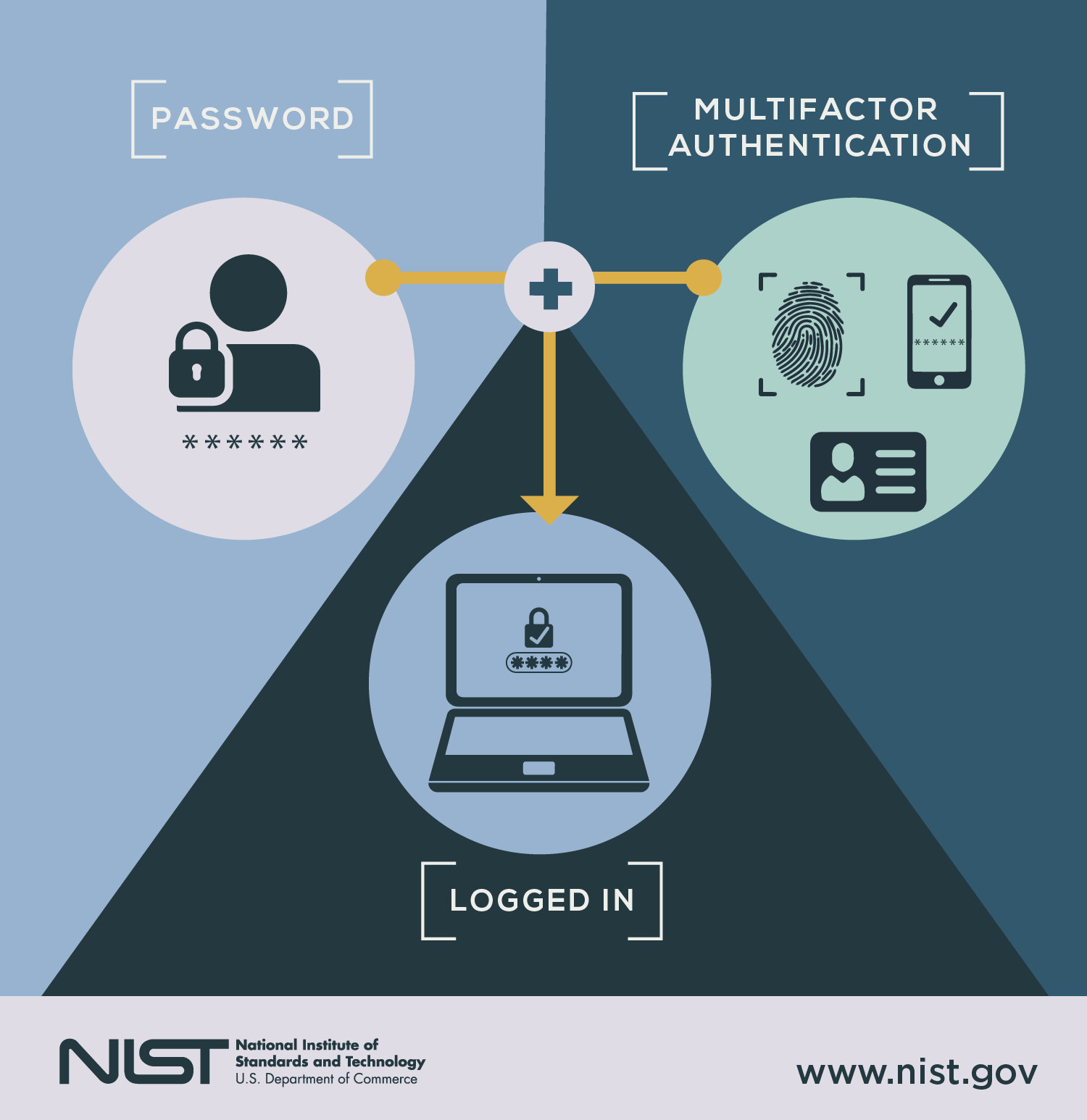
Authentication methods generally fall into three categories:
- Something you know — a password, PIN, or passphrase.
- Something you have — a smartphone, authenticator application, hardware security key, or other device.
- Something you are — a biometric characteristic such as a fingerprint or facial recognition.
MFA combines two or more authentication methods from different categories. A password plus a security question is not multi-factor authentication, because both are things you know. A password plus a code from your phone is. A familiar example is entering your password and then approving a notification on your phone.
Common MFA Techniques
There are several ways a service may provide multi-factor authentication, and they are not equally strong. As a general rule: text messages are the minimum, an authenticator application is the practical baseline for most people, and security keys or passkeys are the strongest protection available. The methods below are listed in roughly that order.
Text Messages
Many services can send a one-time authentication code by SMS text message.
SMS authentication is generally much better than using a password alone and is widely supported. However, it is the least resistant of the common methods. Codes can be intercepted, and in a SIM-swap attack a criminal persuades the mobile carrier to move a victim’s phone number to a device the criminal controls.
When stronger methods are available, we generally prefer them, particularly for accounts containing sensitive information.
Push Notifications
Some authentication applications send a notification asking you to approve or deny a login.
Push authentication is convenient, but never approve an authentication request you did not initiate. Repeated unexpected approval requests can indicate that someone already knows your password and is attempting to access your account.
Many services now use number matching, which displays a two-digit number on the sign-in screen that you must type into the application. This is a meaningful improvement, because it is no longer possible to approve a login by tapping a prompt without knowing what you are approving. Microsoft 365 users will already be familiar with it.
Authenticator Apps
Authenticator applications such as Google Authenticator, Microsoft Authenticator, Bitwarden, and similar applications can generate a temporary numerical code that changes periodically.
These codes are commonly based on TOTP — Time-Based One-Time Passwords. The code works for only a short period, does not depend on receiving a text message, and does not require a cellular signal.
Authenticator applications are generally a good MFA choice when they are supported, and are the method we recommend for most staff.
HOTP Tokens
Another technique is HOTP — HMAC-Based One-Time Passwords. HOTP is commonly associated with certain hardware authentication tokens and specialized applications. It is less broadly applicable to everyday account authentication, so we discuss hardware OTP tokens separately in our article:
Hardware OTP Tokens: Secure Your Banking and Confidential Information
Hardware Security Keys
Hardware security keys are small physical devices that can be used to verify your identity. They can provide very strong protection against phishing because the authentication process is tied to the legitimate website.
This distinction matters. A convincing counterfeit sign-in page can ask you for a text-message code or an authenticator code and use it immediately — but a security key will simply not respond to a website that is not the genuine one.
Security keys can be particularly useful for administrators, business owners, financial personnel, and others who have access to sensitive systems.
Passkeys and Device-Based Authentication
Newer services increasingly support passkeys, which use cryptographic credentials stored on a trusted device or synced securely through a password manager or platform account such as Bitwarden, Apple iCloud Keychain, Google Password Manager, or Microsoft. The user commonly verifies access using a fingerprint, facial recognition, or device PIN.
Like hardware security keys, passkeys are tied to the legitimate website address, which makes them highly resistant to phishing. They can provide both strong security and easier sign-in because there is no conventional password for an attacker to steal or trick you into entering on a fraudulent website.
Where to Start
You do not have to secure every account at once. If you are just getting started with MFA, prioritize accounts in this order:
- Email first. Your mailbox is often the password-reset path for your other accounts. Protecting your email helps protect the front door to much of your digital life.
- Money. Online banking, payroll, QuickBooks, donation systems, and payment processors.
- Control. Domain registrars, website administration, remote-access systems, and any account with administrative rights.
- Everything else. Social media, vendor portals, shopping accounts, and other online services.
For two of the most common business platforms, you can begin MFA enrollment here:
- Google / Gmail / Google Workspace: myaccount.google.com/security
- Microsoft 365: aka.ms/mfasetup
MFA Is Only Helpful If You Use It Correctly
Enabling MFA is an important first step, but a few practices make it substantially more effective:
- Never give an MFA code to another person. A legitimate support technician should not need you to read them a one-time authentication code so they can log into your account.
- Do not approve unexpected login requests. If you receive an MFA prompt when you are not signing in, deny it and consider changing your password.
- Use unique passwords. MFA complements good password practices; it does not replace them.
- Use the strongest practical MFA method available. An authenticator app or security key is generally preferable to SMS when the service supports it.
What Happens If You Lose Access?
One concern we frequently hear is: What happens if I lose my phone?
Most services provide recovery options, but they need to be configured before there is a problem. Setting up a second method and saving your recovery codes takes a few minutes at enrollment and prevents nearly every lockout we are called about.
Depending on the service, recovery options may include:
- A second registered device
- An alternate authentication method
- Recovery codes, which many services provide when MFA is configured — store them securely, and not in the email account they protect
- A hardware security key
- Administrator-assisted account recovery
For business accounts, your organization’s administrator may sometimes be able to temporarily reset or disable MFA so you can regain access. MFA should then be re-enrolled as soon as access has been restored.
Leaving MFA disabled after resolving a login problem unnecessarily removes an important layer of account protection.
The Bottom Line
Multi-factor authentication is one of the simplest and most effective security improvements available to individuals and businesses.
No security measure eliminates every risk, but MFA makes a stolen password dramatically less useful to an attacker.
If a service offers MFA, we recommend enabling it — especially for email, banking, Microsoft 365, Google Workspace, cloud storage, accounting systems, remote-access systems, and any account containing confidential or business information.
A few extra seconds during an occasional login can prevent a much larger problem later.